Desktop power. A mobile feel.
Keep using the real Mac app, in a focused view that feels at home on your phone.
 VibeDesk
Control ChatGPT, Claude, or Terminal on your Mac from your phone. VibeDesk connects you to one app and sizes its workspace for your screen, so text is readable and controls are easy to reach.
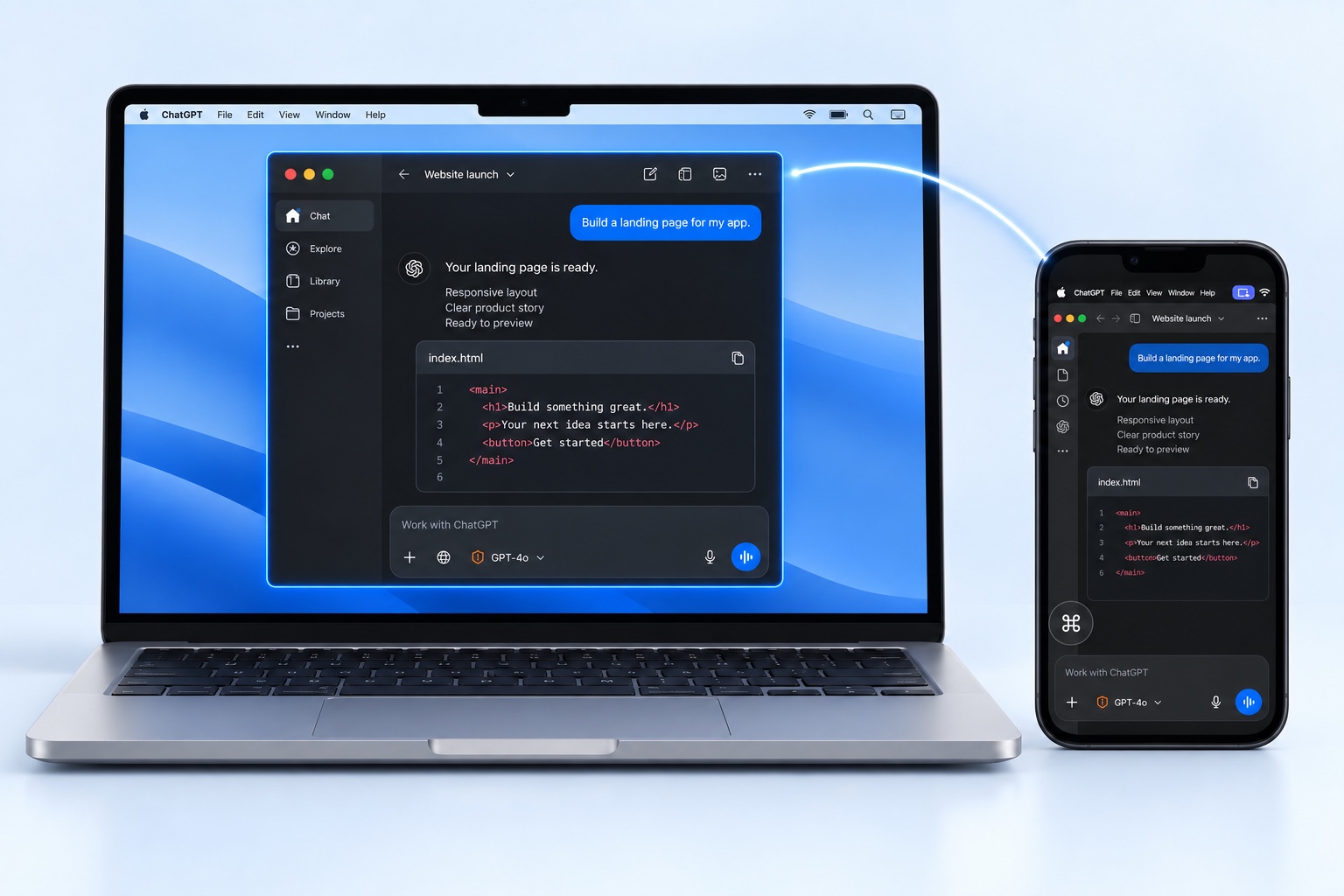
A whole-screen remote session squeezes your desktop into your phone. VibeDesk brings one app forward and gives it a workspace shaped for your screen.
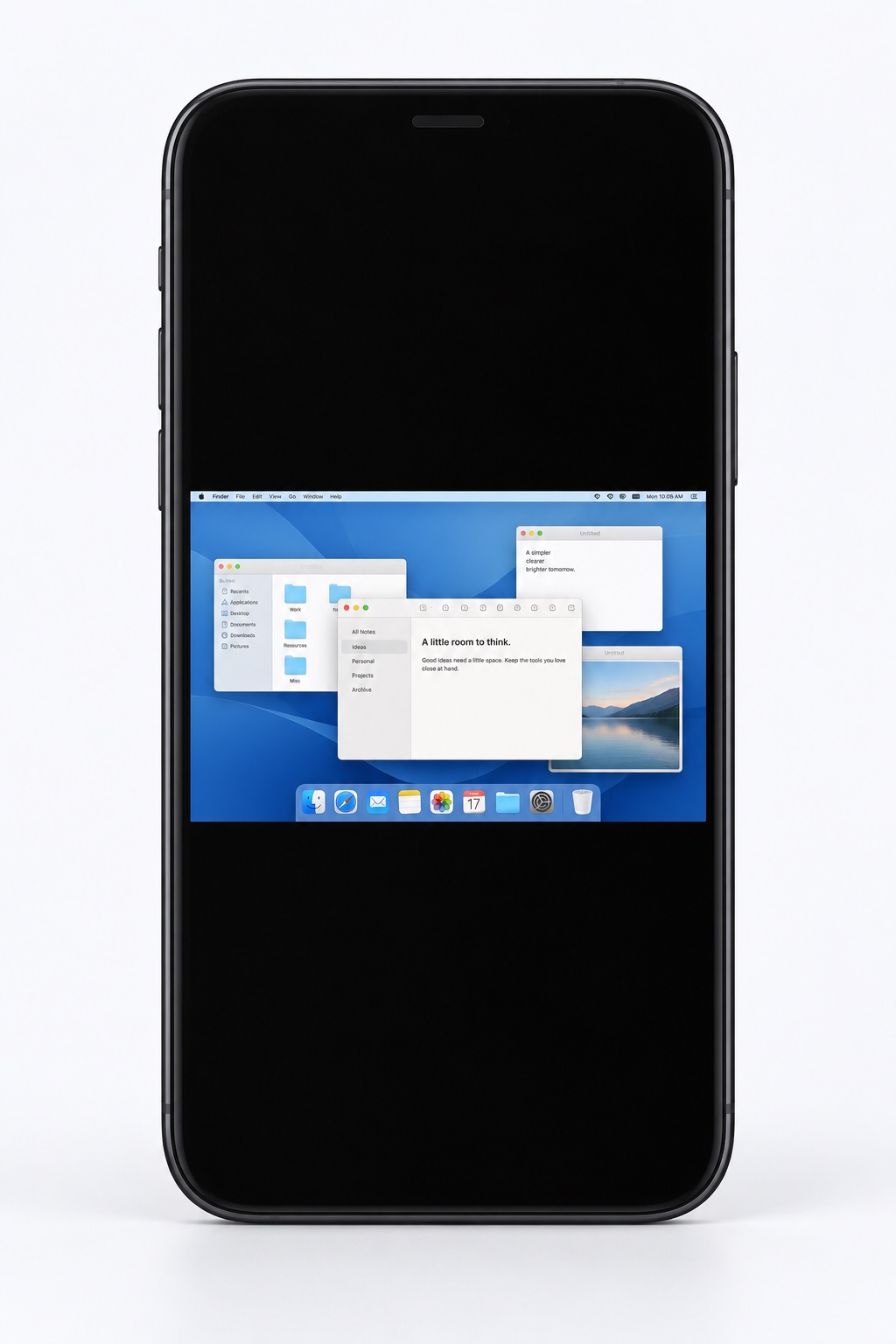
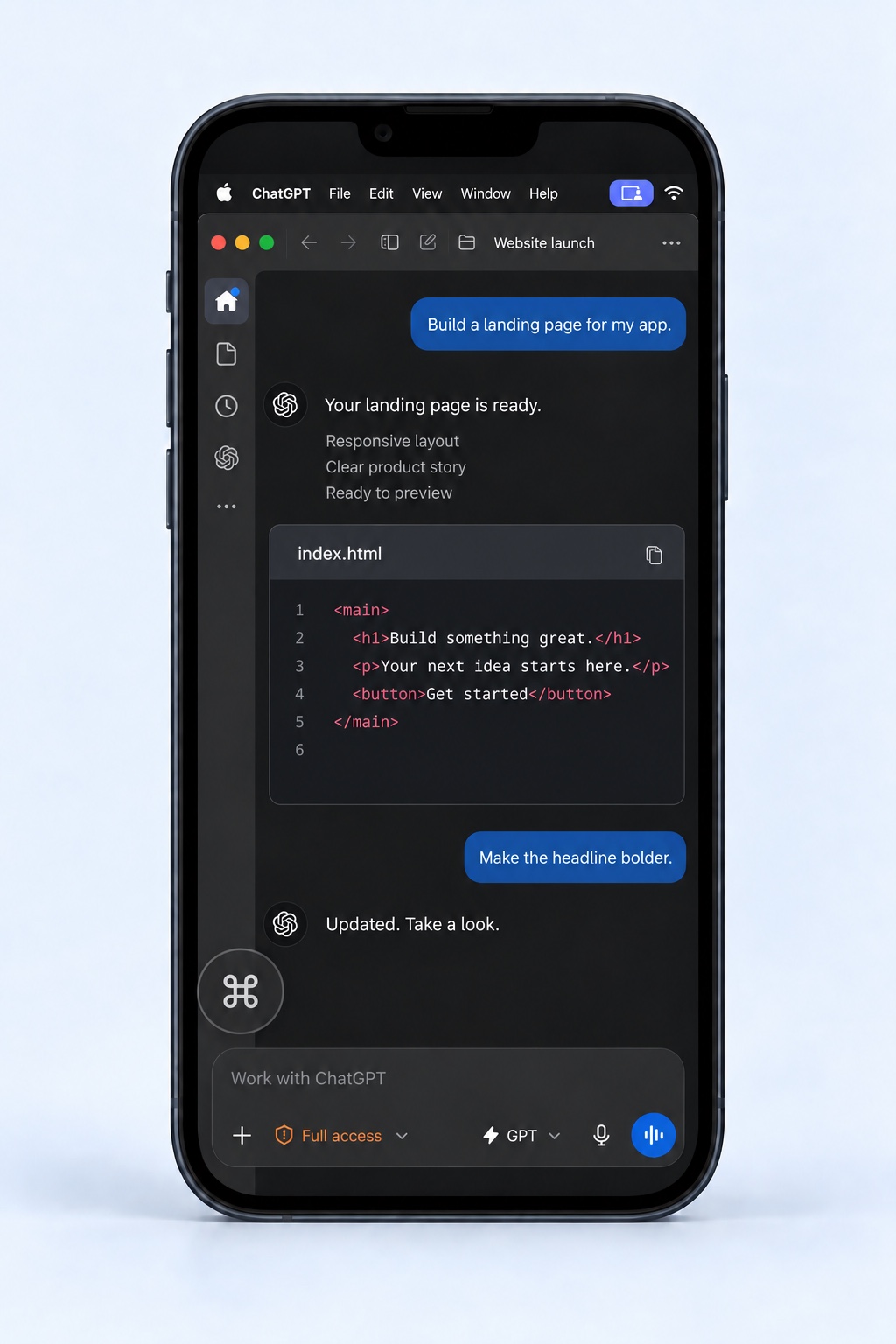
Illustrative views of app-level and desktop-level control.
Your Mac does the work. VibeDesk gives your app a dedicated workspace, then brings that app to your device.
mac:~ you$ pwd
/Users/you/Projects

mac:Projects you$ ls
ideas    notes    website

mac:Projects you$ ▌
Illustrative Mac app view 480 × 800 workspace
Select a Mac app and bring its windows and dialogs into one focused workspace.
Choose a portrait or landscape workspace. VibeDesk resizes the app window to fit, while respecting its minimum size.
Tap, drag, scroll, and type. Switch to trackpad mode when you want precise pointer control.
Keep using the real Mac app, in a focused view that feels at home on your phone.
Retina-aware streaming and adjustable quality keep your chosen workspace clear.
End the session and your moved windows return to their original position and size.
Allow Screen Recording and Accessibility. Keep your Mac awake and signed in.
Choose a nearby Mac, or enter its address. Use the six-digit connection code.
Pick the app you want to use. Set a workspace size that fits your screen and start.
A few useful details
Yes. You control the actual Mac app, with its existing files and desktop capabilities. VibeDesk brings its window to your device; it doesn’t convert the app into a separate iPhone version.
VibeDesk sizes the app’s workspace for your device and resizes its windows. Each app keeps its own layout rules and minimum window size. When an app needs more room, the workspace expands to keep its controls visible.
Control a Mac from an iPhone, an Android device, or another Mac. You need macOS 14+, iOS 17+, or Android 8.0+, respectively. Apple Silicon and Intel Macs are supported.
Sign in to VibeDesk on both devices. Find a nearby Mac or enter its local or VPN IP address, then use its six-digit host authorization code. The devices connect directly over TLS.
Yes. Choose a single window, an entire app including its other windows and dialogs, or a dedicated virtual desktop. End control and moved windows return to their original position, size, and minimized state.
Build the apps from the source on GitHub. The User Guide walks you through installation, Mac permissions, connection setup, and your first remote session.
macOS 14+ iOS 17+ Android 8.0+